Wednesday, May 16, 2012

5 Great Android Apps for Cloud Admins


5 Great Android Apps for Cloud Admins

If you administer cloud servers or services, such as those from Amazon Web Services or Rackspace, you might be relieved to learn that you don't need access to a notebook or desktop PC to perform routine administrative tasks.
Install one of these five apps--AWS Console, Android AWS Manager, Decaf Amazon EC2 Client, Rackspace, or ConnectBot--on your Android phone or tablet, and you can manage your cloud infrastructure from anyplace where you can access the Internet.

The best camera bargains right now

The best camera bargains right now


For the most part, the digital-camera landscape is mapped out in $200 increments. Every $200 you're willing to spend represents a nice step up in camera capabilities.
Here's how it generally shakes out: For $200

Use Google Voice to Send Text Messages From a Tablet

Google Voice app
Last week I offered up three things you should know about Google Voice, including its very cool option of sending and receiving text messages from within your browser.
Reader George followed up with this question:
"Read your column on texting through Google voice from a PC. Can you do the same with a tablet on Wi-Fi, no charge?"

Find the Best Netflix Streaming Movies With A Better Queue


For a service that has famously worked so hard to help you find movies you might like, Netflix is actually a little weak in the recommendations department.
Suppose, for example, you're trying to find something fun for the whole family to watch. By clicking your way into Netflix's Watch Instantly section, you can head to the Children & Family section, then filter the choices by one of a handful of categories: age, "animal tales," Disney, and so on.
But what if you want to narrow the selection to a particular range of years? And show only those movies that received an especially good rating?

The Bootable Maintenance Flash Drive


Fixing your friends' computers? Carry a bootable PC toolkit in your pocket.

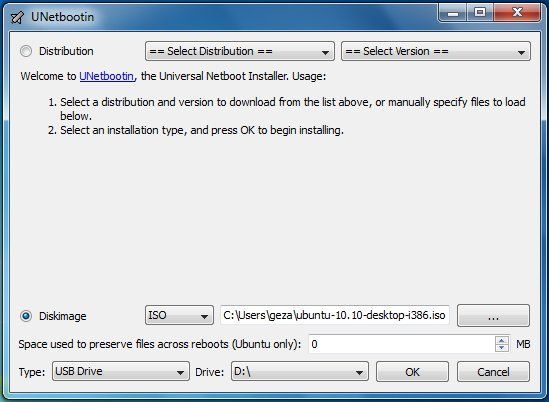
How To Carry Any Operating System In Your Pocket
I enjoy being the tech hero. Relatives and friends come to me with their computer problems, and more often than not, I help them. Their problem gets solved, and my ego goes up a notch. (I can vouch for that last one. --Ed.)
It helps to have the right tools--and unless a friend has a hardware problem, all of those tools fit onto a single flash drive. If a person's system is sufficiently sick, I can boot a Linux variation called PartedMagic from the flash drive. From there, I can retrieve files off an unbootable PC, check the condition of the hard drive, and scan for malware.

Safely Remove USB Drives Just by Unplugging Them


Most Windows users have become conditioned over time to never unplug a USB flash drive or hard drive without first clicking Safely Remove Hardware in the System Tray.
Why is that necessary? In theory, it's to ensure that Windows isn't busy reading from or writing to the drive when you remove it, something that could result in corrupted data or even a damaged drive.
As it turns out, however, you can safely sidestep Safely Remove Hardware with little to no loss of performance. In fact, this option may already be enabled on your system, and you just didn't know it. Yep, you may have been wasting extra clicks all this time.
Do this:
1. Plug your USB drive into your PC, then open Device Manager. (Note: These steps are based on Windows 7. Things might look different in previous versions of Windows.)
2. Expand Disk Drives, then find the entry for your removable drive. On my system, for example, it's called "USB2.0 Flash Disk USB Device."
3. Right-click that entry, then click Properties.
4. Click the Policies tab; you should see something like this:

5. If the first option, Quick removal, is already selected, you're good to go. As noted in its description, "you can disconnect the device safely without using the Safely Remove Hardware notification icon." If Better performance is selected, switch to Quick removal and click OK.
So, what are giving up by disabling write caching? According to the test results posted at 7tutorials, almost nothing. The performance impact was negligible. Your mileage may vary, of course, but I think it's worth a few milliseconds to avoid the hassles of having to mess with Safely Remove Hardware all the time.
Contributing Editor Rick Broida writes about business and consumer technology. Ask for help with your PC hassles at hasslefree@pcworld.com, or try the treasure trove of helpful folks in the PC World Community Forums. Sign up to have the Hassle-Free PC newsletter e-mailed to you each week.

How to Create a Bootable Mac OS X Flash Drive


Creating a bootable thumb drive that will run Lion and fit in your pocket is easy. This simple guide walks you through the necessary steps.
How To Carry Any Operating System In Your Pocket

A bootable Mac OS X thumb drive comes in handy when you need to troubleshoot OS issues for yourself, your family, or your friends. It's also extremely useful for keeping your basic setup consistent across multiple computers, if you find yourself switching hardware regularly

Create a Bootable Linux Flash Drive in Three Easy Steps

A flash drive is one of the single most useful tools a person can own. With it you can back up critical data, transport large files, rescue a malware-infested PC, and even run an entire operating system.

Regarding this last option, awhile back I explained how to put Windows 8 on a flash drive. (It works with Windows 7, too.) Today, let's talk about putting Linux on a flash drive.

How to Convert an Old PC into a Modern Server

Your old desktop PC gave you years of reliable service, but eventually it couldn't keep up with modern tasks and applications; so you went out and bought something newer and faster. Now you need to decide what to do with the old clunker.


You could e-recycle it--hand it off to a responsible company that will dismantle it and recycle the parts--but what do you gain from that aside from feeling good about being environmentally responsible? Allow us to suggest another solution: Repurpose the old hulk as a local server. You can use it as a repository for automatic PC backups, or set it up as a file server that you and your employees can access while you're on the road. Those are just two of the roles that an older PC can perform that are of far more benefit to your business than having the machine collect dust or head for the dump.

Tuesday, March 13, 2012

Tablets Won't Kill the PC, Just Replace It


I think the idea of the “post-PC era” needs some clarification. There is much hoopla and fanfare being dedicated to dwindling PC sales, and the idea that tablets--specifically the Apple iPad--are going to be the death knell for PCs. It’s not a “death”, it’s an “evolution” and the tablet is just the new PC.
What is a “PC”? It simply stands for “personal computer”. I have had debates in the past with people telling me that PCWorld shouldn’t write about Macs. But, a Mac is a “personal computer”, and our name is not “Windows PCWorld” (it’s funny that nobody ever seems to make that distinction when we write about Linux).
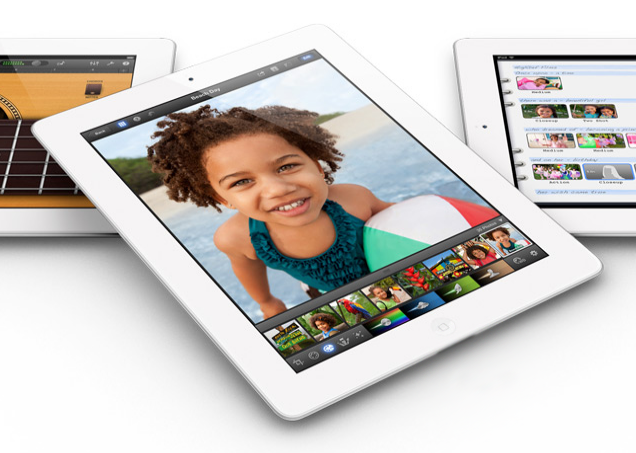
Apple iPadTablets like the Apple iPad are still "personal computers" in the strict sense.But, I digress. Back to tablets. The advent of tablets may be a harbinger of doom for traditional operating systems like Windows and Mac OS X, but not for PCs. The tablet is a PC itself--it is a device or platform a person uses for computing.
When mini-towers came along, nobody ran around claiming that the sky was falling and that the PC as we know it is dead. When laptops became notebooks, then netbooks, then ultrabooks there was no panic about the end of the PC. They’re all just variations on a theme--different sizes and shapes of personal computers. The same is true for tablets.
Will the iPad impact traditional PC sales? Probably. It should. For the vast majority of both business and consumer PC users, the iPad (or tablets in general) provide all of the core functions, such as email, Web surfing, basic productivity, casual gaming, social networking, etc.. And, they have the added benefit of being slim, light, and having battery endurance that can make it through the entire day…and then some.
Ultrabooks offer a close comparison in terms of features and benefits while still fitting the mold of the traditional PC. The MacBook Air is a huge success, and it seems like there is significant demand for the coming onslaught of Windows-based ultrabooks.
Dell XPS 13Ultrabooks like the Dell XPS 13 are awesome, but cost more than a tablet "PC".There will certainly still be pros and cons to both, but the primary difference at some point will be price. If an ultrabook is $1000, but an iPad 2 is $400, the iPad 2 represents a better value for those who only need the capabilities a tablet can deliver. It makes sense to go with the new PC form factor--the tablet.
If you want more evidence that tablets are the next evolution of PCs rather than a conquering hoard intent on crushing the PC market, just look at Apple and Microsoft. Both of the major desktop operating systems are being merged and transformed to adapt to the new mobile world--evolving to meet the needs of the latest PC form factor.
As the mobile and desktop operating systems for both Apple and Microsoft seem to converge and meld into one, the line gets blurry on the differences between the two in terms of experience, and it just comes down to picking the size and shape of PC that works best for you whether that is a desktop, ultrabook, or tablet.
courtsey:By Tony BradleyPCWorld